Some of us playing Unreal Tournament 2004 may be familiar with the error open /dev/[sound/]dsp: Resource temporarily unavailable. This is usually caused because the sound system is busy (for example, you have an audio player opened, or a paused movie).
The simplest way to get over this problem is to install the alsa-oss package, which contains the aoss wrapper to allow the use of ALSA OSS library. In Debian, type as root:
apt-get install alsa-oss
Then run UT2004 like this:
aoss ut2004
Or:
aoss /usr/local/games/ut2004demo/ut2004-demo
Depending on where your game is installed. The good thing about this is that you can now listen to music in a player separate from the one included in the game and also hear the UT2004 sounds.
August 31, 2008


August 12, 2008
Banshee 1.2 - 1.x Series Getting to Maturity
The new Banshee 1.2 includes several new features over the last stable release, like the equaliser or the music recommendations panel. The full list of new or improved features is here. For those who didn't hear about Banshee yet, it's a pretty powerful audio player for GNOME which received more and more attention lately, featuring things like a media library, support for Last.fm, podcasts, cover fetching, plugins and many more.

I was enchanted to try the so-called 'Amarok Migration' feature, which, according to the official website, lets you import ratings, play counts and podcasts from Amarok. Well, I have Amarok 1.4.9.1 using SQLite but Banshee crashed when I tried to import those using the Media -> Import Media dialogue, already having a media library in Banshee. I tried deleting the file ~/.config/banshee-1/banshee.db and this time the import feature worked flawlessly, and Banshee didn't crash anymore.

The equaliser works very well, except that there are no default presets. I think several default presets like 'Rock', or 'Full Bass' would be nice instead of letting the user setting those.

I was still disappointed to see that the cover fetching plugin doesn't look inside the song's directory for local files like cover.jpg or front.png, but the retrieval of covers from the Internet works pretty well. All of the covers for albums which don't have additions like [2004 Remaster] or [Limited Edition] were correctly fetched.

Banshee looks more improved with every version and it's definitely a very promising player. Compared to 1.0.0, this new release it's much more stable (no more crashes when clicking on the Last.fm tab for example), but I think it still needs some work at cover fetching, and the Last.fm integration won't show all the images for recently played tracks. Last.fm changed the layout recently so I'm not sure whether this is Banshee's fault at all.

Although the 1.0 release was also accompanied by a new, professionally designed website, work at the Wiki seems to be still in progress.
Although I'm not a GNOME or GTK fan, I can warmly recommend Banshee to any audiophile using this desktop environment. It's almost full-featured, and stable enough now, the 1.x series showing real signs of maturity now.

Banshee 1.2.0 playing

I was enchanted to try the so-called 'Amarok Migration' feature, which, according to the official website, lets you import ratings, play counts and podcasts from Amarok. Well, I have Amarok 1.4.9.1 using SQLite but Banshee crashed when I tried to import those using the Media -> Import Media dialogue, already having a media library in Banshee. I tried deleting the file ~/.config/banshee-1/banshee.db and this time the import feature worked flawlessly, and Banshee didn't crash anymore.
Importing the Amarok media library

The equaliser works very well, except that there are no default presets. I think several default presets like 'Rock', or 'Full Bass' would be nice instead of letting the user setting those.
The new equaliser

I was still disappointed to see that the cover fetching plugin doesn't look inside the song's directory for local files like cover.jpg or front.png, but the retrieval of covers from the Internet works pretty well. All of the covers for albums which don't have additions like [2004 Remaster] or [Limited Edition] were correctly fetched.
Plugins

Banshee looks more improved with every version and it's definitely a very promising player. Compared to 1.0.0, this new release it's much more stable (no more crashes when clicking on the Last.fm tab for example), but I think it still needs some work at cover fetching, and the Last.fm integration won't show all the images for recently played tracks. Last.fm changed the layout recently so I'm not sure whether this is Banshee's fault at all.
Last.fm integration - Banshee features song submission too

Although the 1.0 release was also accompanied by a new, professionally designed website, work at the Wiki seems to be still in progress.
Although I'm not a GNOME or GTK fan, I can warmly recommend Banshee to any audiophile using this desktop environment. It's almost full-featured, and stable enough now, the 1.x series showing real signs of maturity now.
About

August 10, 2008
How-To: Compile and Install Banshee 1.2.0 on Debian Lenny
Banshee is a powerful audio player written using GTK, featuring audio and video libraries, support for podcasts and much more. The last version, 1.2, was released on July 30, 2008.
1. Install the necessary dependencies
As root, type:
apt-get install build-essential
apt-get build-dep banshee
For the last one, make sure you have sources repositories enabled in your /etc/apt/sources.list file (there is a line which starts with deb-src).
2. Download the source tarball
Download the source tarball from here, under the Source releases, then change the current working directory to where you saved the archive, and uncompress it:
tar -xjf banshee-1-1.2.0.tar.bz2
Change the working directory to banshee-1-1.2.0, and proceed to the next step.
3. Compile Banshee 1.2.0
In the banshee-1-1.2.0 directory, issue the usual:
./configure
make
make install
The last command as root. Banshee 1.2 should be now properly installed. Run it as banshee-1 from command line or pressing ALT+F2 and typing the name in the run dialogue that appears.

1. Install the necessary dependencies
As root, type:
apt-get install build-essential
apt-get build-dep banshee
For the last one, make sure you have sources repositories enabled in your /etc/apt/sources.list file (there is a line which starts with deb-src).
2. Download the source tarball
Download the source tarball from here, under the Source releases, then change the current working directory to where you saved the archive, and uncompress it:
tar -xjf banshee-1-1.2.0.tar.bz2
Change the working directory to banshee-1-1.2.0, and proceed to the next step.
3. Compile Banshee 1.2.0
In the banshee-1-1.2.0 directory, issue the usual:
./configure
make
make install
The last command as root. Banshee 1.2 should be now properly installed. Run it as banshee-1 from command line or pressing ALT+F2 and typing the name in the run dialogue that appears.
Running Banshee 1.2.0

Most Popular Posts - July
SMPlayer Review - One of the Most Powerful Video Players for Linux
SMPlayer is a complete video player built in Qt 4.4.0 and based on the powerful, open-source MPlayer.

XChat 2.8.6 Review - A Great Graphical IRC Client
XChat is a very powerful IRC client written in GTK who has been around for years and is now feature complete, low on resources, with a powerful scripting interface and support for C plugins.

Why Is It So Hard for Windows Users to Understand That Linux Is Not Windows
A short essay on what makes Windows users who try to switch to Linux have the impression that Linux is harder to learn or use than Windows.
5 Reasons to Use CLI over GUI
First, I must say that using CLI is not always faster, not necessarily. There are tasks which can be done faster and easier using some GUI application rather than typing a whole bunch of commands. But, nevertheless, command line is still very powerful and it's more appropriate to use it for certain tasks.
4 Ways to Rip DVDs on Linux
Review of 4 graphical applications to rip DVDs on Linux: K9Copy, AcidRip, DVD::Rip and Thoggen.

10 Best KDE Applications - Reloaded
Review of 10 KDE applications, a continuation to the 10 Best KDE Applications article I wrote a while ago.

Xfe Review - Wonderful File Manager
Review of the Xfe file manager for Linux written using the FOX toolkit.

12 Web Browsers for Linux - Review
A review on 12 graphical and CLI web browsers for Linux, including Firefox, Konqueror, Kazehakase, lynx and several more.

SMPlayer is a complete video player built in Qt 4.4.0 and based on the powerful, open-source MPlayer.

XChat 2.8.6 Review - A Great Graphical IRC Client
XChat is a very powerful IRC client written in GTK who has been around for years and is now feature complete, low on resources, with a powerful scripting interface and support for C plugins.

Why Is It So Hard for Windows Users to Understand That Linux Is Not Windows
A short essay on what makes Windows users who try to switch to Linux have the impression that Linux is harder to learn or use than Windows.
5 Reasons to Use CLI over GUI
First, I must say that using CLI is not always faster, not necessarily. There are tasks which can be done faster and easier using some GUI application rather than typing a whole bunch of commands. But, nevertheless, command line is still very powerful and it's more appropriate to use it for certain tasks.
4 Ways to Rip DVDs on Linux
Review of 4 graphical applications to rip DVDs on Linux: K9Copy, AcidRip, DVD::Rip and Thoggen.

10 Best KDE Applications - Reloaded
Review of 10 KDE applications, a continuation to the 10 Best KDE Applications article I wrote a while ago.

Xfe Review - Wonderful File Manager
Review of the Xfe file manager for Linux written using the FOX toolkit.

12 Web Browsers for Linux - Review
A review on 12 graphical and CLI web browsers for Linux, including Firefox, Konqueror, Kazehakase, lynx and several more.

July 27, 2008
IRC Clients for Linux - A Review
Since I'm an IRC addict and I always liked to spend time learning new stuff on IRC, here is a review of several IRC clients for Linux. Some of them are well-known and popular, like XChat, Konversation or Irssi, and others are not so widely used or known, but nevertheless, they deserve mentioning.
KVirc
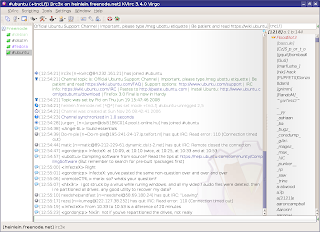
KVirc is a powerful client for KDE focusing on an apealing interface, providing its own scripting language called KVS (KVirc scripting language), with lots of options for configurating it, and much more. Among all the clients I tested, KVirc was the most bloated, trying always to include as many options as possible and be user-friendly in the same time, but sometimes it felt like not all of those were needed. For example, the Ignore As... menu includes all the possible combinations for ignoring a person. I think it would have been wiser to include only 2 or 3 and eventually provide a dialog window so the user can enter it manually, with a brief explanation for how it works.
I also found the CTCP option not useful when on a channel, since if you CTCP VERSION or PING, all the users on that channel will get the CTCP request. On a large channel that can lead to a ban, or lag, and it's just not useful.
Anyway, back to the good stuff that KVirc provides. Each release has a nice codename, like the one in the last version, 'Virgo', with a suggestive picture to emphasise it.
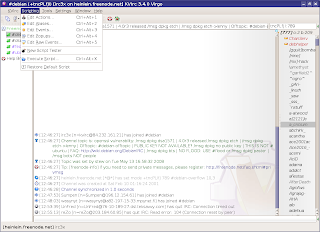
Although I didn't test the scripting language much, it looks pretty much the same as the one mIRC has, so for those who are switching from Windows, KVirc should be a good choice. KVS is accompanied by complete documentation which can be accessed from the Help -> Help Browser menus (you can open it in two different ways, as a separate tab or as a panel). It also supports themes, addons, or the possibility to save different configuration profiles.
 KVirc scripting menu - the system is somewhat similar with the one of mIRC
Overall, although this particular version (3.4.0) was a little slow for me, KVirc is complete, powerful and it looks very good.
Official website

XChat
XChat is a very popular graphical client for Linux, including powerful scripting support in Perl, Python, Tcl, C plugins, powerful configurability using /SET variables and many other. XChat is built in GTK, and a version using GNOME libraries, called xchat-gnome, is also available.
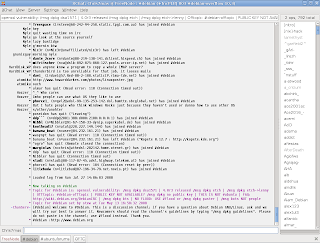
Some of the features I love about XChat besides the powerful scripting support: logging system allowing to name your path and files using date specifiers (like %b for month or %d for day and so on), the interface is simple and clean, yet all the options I need are available using /SET, including the conference mode. The Linux version doesn't receive as much attention like the Windows one (probably because the Windows one is paid), but XChat is already complete.
Online documentation is very abundant, and tutorials on how to write scripts and plugins are very helpful and useful.
Official website

Irssi
Irssi is a command line client which includes a simple yet very effective way of navigating through channels/queries. You'll have to read the manual if you use it for the first time, but once you get used to shortcuts (most of them being Emacs-like), Irssi gets pretty easy to use, and shortcuts can be customised too. It supports Perl scripting and the official website contains hundreds of them, can be customised in each and every way using commands explained in detail in the documentation. For me, Irssi wins at all the chapters if it is to compare it with Weechat, Epic4 or TinyIRC.
Official website

Konversation
I noticed Konversation received more and more attention over the last years, since it's a client aimed towards persons new to IRC, and strives to be user-friendly. And it succeeds, having all the necessary options in the configuration window. As default though, the interface lacks a toolbar menu, which can be enabled using the Settings -> Show Toolbar menu, and shortcut icons can be added there. As every decent KDE application, Konversation allows editing shortcuts, it can be embedded in the system tray, it includes configurable notifications, it has a basic logging system and an option to load logs in a new tab and perform searches. When joining a new channel or opening a new query, a backlog will be displayed with the last lines of the previous discussion (if any).
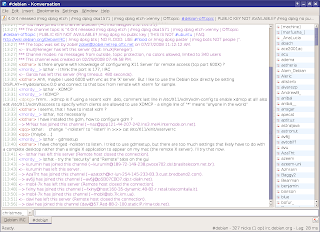
Konversation only lacks event-based scripting, and that's a must-have for a scripting language in my opinion. Otherwise, it comes as default with several powerful scripts, like the now playing script (supporting the major audio and video players for KDE), or a weather script, or system info. The first release candidate for version 1.1 is now available.
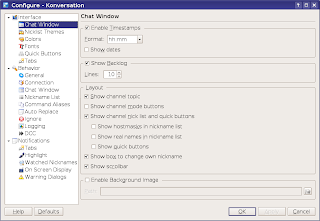
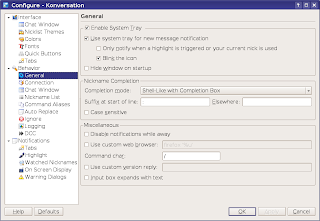
I warmly recommend Konversation to users who want to try IRC for the first time, but XChat or KVirc would be good choices too.
Official website

Pidgin
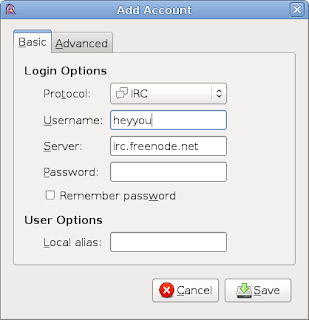
I must say, I rarely use Pidgin or Kopete for connecting to an IRC network, but you can find it useful if you don't care much about having a powerful, dedicated client especially for IRC. Pidgin is widely known for being the GNOME IM (Instant Messaging) client first, but it can also be used as a basic IRC client if you are looking to only get on IRC, without all the options advanced clients provide.
Official website

Kopete
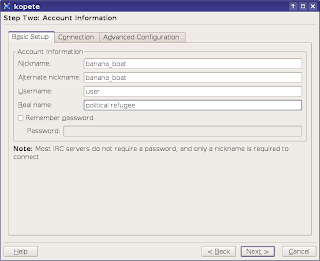
Just like Pidgin, Kopete is the KDE IM client and provides a basic IRC client too. The advantage both Pidgin and Kopete provide is that if you use IM a lot (for example you have both Yahoo and MSN accounts) and want to get on IRC, you can use a single application for it, without the need of opening a new application just to chat on IRC.
Official website

As mentioned above, there are many more clients available, like the popular BitchX, the lightweight Weechat, the classic Epic4 or TinyIRC (official website?) to give a few.
KVirc
KVirc is a powerful client for KDE focusing on an apealing interface, providing its own scripting language called KVS (KVirc scripting language), with lots of options for configurating it, and much more. Among all the clients I tested, KVirc was the most bloated, trying always to include as many options as possible and be user-friendly in the same time, but sometimes it felt like not all of those were needed. For example, the Ignore As... menu includes all the possible combinations for ignoring a person. I think it would have been wiser to include only 2 or 3 and eventually provide a dialog window so the user can enter it manually, with a brief explanation for how it works.
KVirc 3.4.0 'Virgo'

I also found the CTCP option not useful when on a channel, since if you CTCP VERSION or PING, all the users on that channel will get the CTCP request. On a large channel that can lead to a ban, or lag, and it's just not useful.
Anyway, back to the good stuff that KVirc provides. Each release has a nice codename, like the one in the last version, 'Virgo', with a suggestive picture to emphasise it.
Although I didn't test the scripting language much, it looks pretty much the same as the one mIRC has, so for those who are switching from Windows, KVirc should be a good choice. KVS is accompanied by complete documentation which can be accessed from the Help -> Help Browser menus (you can open it in two different ways, as a separate tab or as a panel). It also supports themes, addons, or the possibility to save different configuration profiles.
KVirc help browser
 KVirc scripting menu - the system is somewhat similar with the one of mIRC
Overall, although this particular version (3.4.0) was a little slow for me, KVirc is complete, powerful and it looks very good.
Official website
Configuring KVirc

XChat
XChat is a very popular graphical client for Linux, including powerful scripting support in Perl, Python, Tcl, C plugins, powerful configurability using /SET variables and many other. XChat is built in GTK, and a version using GNOME libraries, called xchat-gnome, is also available.
XChat usual look

Some of the features I love about XChat besides the powerful scripting support: logging system allowing to name your path and files using date specifiers (like %b for month or %d for day and so on), the interface is simple and clean, yet all the options I need are available using /SET, including the conference mode. The Linux version doesn't receive as much attention like the Windows one (probably because the Windows one is paid), but XChat is already complete.
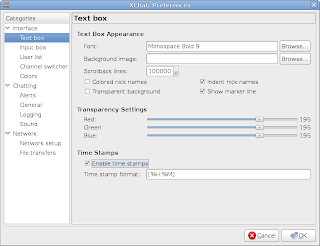
XChat preferences

Online documentation is very abundant, and tutorials on how to write scripts and plugins are very helpful and useful.
Official website
Default look for xchat-gnome

Irssi
Irssi is a command line client which includes a simple yet very effective way of navigating through channels/queries. You'll have to read the manual if you use it for the first time, but once you get used to shortcuts (most of them being Emacs-like), Irssi gets pretty easy to use, and shortcuts can be customised too. It supports Perl scripting and the official website contains hundreds of them, can be customised in each and every way using commands explained in detail in the documentation. For me, Irssi wins at all the chapters if it is to compare it with Weechat, Epic4 or TinyIRC.
Official website
Irssi running inside Konsole

Konversation
I noticed Konversation received more and more attention over the last years, since it's a client aimed towards persons new to IRC, and strives to be user-friendly. And it succeeds, having all the necessary options in the configuration window. As default though, the interface lacks a toolbar menu, which can be enabled using the Settings -> Show Toolbar menu, and shortcut icons can be added there. As every decent KDE application, Konversation allows editing shortcuts, it can be embedded in the system tray, it includes configurable notifications, it has a basic logging system and an option to load logs in a new tab and perform searches. When joining a new channel or opening a new query, a backlog will be displayed with the last lines of the previous discussion (if any).
Konversation 1.0.1 - 1.1RC1 has been released too

Konversation only lacks event-based scripting, and that's a must-have for a scripting language in my opinion. Otherwise, it comes as default with several powerful scripts, like the now playing script (supporting the major audio and video players for KDE), or a weather script, or system info. The first release candidate for version 1.1 is now available.
Konversation configuration


I warmly recommend Konversation to users who want to try IRC for the first time, but XChat or KVirc would be good choices too.
Official website
Default Konversation scripts

Pidgin
I must say, I rarely use Pidgin or Kopete for connecting to an IRC network, but you can find it useful if you don't care much about having a powerful, dedicated client especially for IRC. Pidgin is widely known for being the GNOME IM (Instant Messaging) client first, but it can also be used as a basic IRC client if you are looking to only get on IRC, without all the options advanced clients provide.
Official website
Adding a new IRC account with Pidgin

Pidgin on IRC

Kopete
Just like Pidgin, Kopete is the KDE IM client and provides a basic IRC client too. The advantage both Pidgin and Kopete provide is that if you use IM a lot (for example you have both Yahoo and MSN accounts) and want to get on IRC, you can use a single application for it, without the need of opening a new application just to chat on IRC.
Official website
Kopete IRC account

#debian @ Freenode on Kopete

As mentioned above, there are many more clients available, like the popular BitchX, the lightweight Weechat, the classic Epic4 or TinyIRC (official website?) to give a few.
July 25, 2008
Listen 0.5 - Yet Another Good GTK Audio Player
Listen is a not so widely known audio player written in Python and using the GTK toolkit, with an interface similar to the one of Rhythmbox, and including features like a music library, podcasts support, lyrics fetching, Wikipedia integration, and Last.fm song submission.

The interface is divided into several sections for the currently selected action. For example, if you select Current from the actions list, Listen will display all the albums by the currently playing artist, favourite songs and recently played songs by the same artist.

I really missed the option to sort the playlist by song location, but otherwise, it includes mostly all other criterias. You can sort by artist, title, album, bitrate, play count, date, year, genre, track number and so on. I'm not sure what the 'Feeds' sorting option does, since it has no visible column in the playlist.
I liked the Wikipedia integration, the browser offers several basic functionality options, like searching for album, artist or song, opening in an external web browser, but it doesn't include an option to specify what browser you want to use. It also has back and forward buttons.

The Context tab will show favourite albums, songs and last played songs. Listen automatically detects cover images in the currently playing song directory and shows them whenever possible: in the context tab, in the library at the albums section or in the now playing area. It also allows you to search for default or specific names on Amazon.com and Google Images, but the Amazon search currently doesn't work. It works fine for Google Images though. Allowing you to enter a custom search term is useful in case you don't find what you want but you want to put any other cover or image instead of it.

Listen can be customised different ways using the Preferences window. To mention a few settings you can change: splash screen, start minimized, visualisations, OSD (on-screen display).


Populating playlists doesn't seem to be very intuitive. For example, after creating a new playlist and going to Music -> Import Folder, the playlist remains empty. However I could do it by selecting all the songs from the Media Library with CTRL+A and dragging them over the playlist name.
Overall, I found Listen to be pretty nice and rich enough in features, but I missed statistics and the option to sort the playlist by location. Otherwise, it's very nice, with a clean layout, and offers a very good audio experience.

Official website
Playing Metallica and visualisation

The interface is divided into several sections for the currently selected action. For example, if you select Current from the actions list, Listen will display all the albums by the currently playing artist, favourite songs and recently played songs by the same artist.
Context tab

I really missed the option to sort the playlist by song location, but otherwise, it includes mostly all other criterias. You can sort by artist, title, album, bitrate, play count, date, year, genre, track number and so on. I'm not sure what the 'Feeds' sorting option does, since it has no visible column in the playlist.
I liked the Wikipedia integration, the browser offers several basic functionality options, like searching for album, artist or song, opening in an external web browser, but it doesn't include an option to specify what browser you want to use. It also has back and forward buttons.
Wikipedia information

The Context tab will show favourite albums, songs and last played songs. Listen automatically detects cover images in the currently playing song directory and shows them whenever possible: in the context tab, in the library at the albums section or in the now playing area. It also allows you to search for default or specific names on Amazon.com and Google Images, but the Amazon search currently doesn't work. It works fine for Google Images though. Allowing you to enter a custom search term is useful in case you don't find what you want but you want to put any other cover or image instead of it.
Cover fetching from Google Images

Listen can be customised different ways using the Preferences window. To mention a few settings you can change: splash screen, start minimized, visualisations, OSD (on-screen display).
Preferences

Last.fm integration

Populating playlists doesn't seem to be very intuitive. For example, after creating a new playlist and going to Music -> Import Folder, the playlist remains empty. However I could do it by selecting all the songs from the Media Library with CTRL+A and dragging them over the playlist name.
Overall, I found Listen to be pretty nice and rich enough in features, but I missed statistics and the option to sort the playlist by location. Otherwise, it's very nice, with a clean layout, and offers a very good audio experience.
About

Official website
July 24, 2008
How-To: Compile and Install Code::Blocks from Source in Debian Lenny
Code::Blocks is an IDE (Integrated Development Environment) for C and C++, built using the wxWidgets kit.
The latest version is 8.02, available for download from the official downloads page. To install the dependencies, use:
apt-get install build-essential
apt-get install libwxgtk2.8-dev wx-common libgtk2.0-dev
Next, uncompress the source and issue the usual:
./configure
make
make install
Last one as root. You can launch Code::Blocks by running codeblocks in a shell or typing ALT+F2 and type codeblocks in the run dialogue.

The latest version is 8.02, available for download from the official downloads page. To install the dependencies, use:
apt-get install build-essential
apt-get install libwxgtk2.8-dev wx-common libgtk2.0-dev
Next, uncompress the source and issue the usual:
./configure
make
make install
Last one as root. You can launch Code::Blocks by running codeblocks in a shell or typing ALT+F2 and type codeblocks in the run dialogue.
Codeblocks 6.02

Subscribe to:
Posts (Atom)