There are many ways to learn Linux, and I can't think of one as being the 'best'. Of course, something may work for some users while failing miserably for others. There are users who prefer to ask a friend or get their answers fast on a forum, either because they are too lazy or they just don't have enough time to learn something new: they want it to work in their own way. Well, that's not quite an option, since there is no universal program which will fit any user's way of doing things.
I remember that when I started I made some very dumb questions on forums and IRC, but I always liked to read documentation, which is by far the best way of learning Linux in my opinion. There is a saying which goes like 'give a man a fish and he will have food for one day, teach the same man how to fish and he will have food for his entire life.' Well, not exactly like this, but you got the point. I think keeping asking questions rather than reading manuals and tutorials first will get you out of trouble for the moment, but there will always be problems in the future which need to be taken care of.
A thing I recently observed was how most of the IRC channels and forums handle beginners: on IRC there is usually a topic and a helpful bot, and on the forums are the stickies which contain detailed information for newbies. The only problem is that this kind of help reached a level of automation: not once I saw well-intentioned persons on IRC who just give a command and a channel robot will show some help regarding that specific problem. Now, I really don't know how much a newcomer understands from help provided this way, but I can't think of a better way to do it either. Users who are new and ask the same question over and over again are countless: in forums, threads like this are always on the front page, and there is a big percentage of similar threads on the entire forum.
Too few users search, and too few read the helpful stickies. This is a common problem actually: usually (and it's just a natural thing) somebody wants a fast answer to his problem, and prefers to post on a big forum like Gentoo forums or Ubuntu forums to get a fast answer rather than reading ten pages of FAQs and an entire thread specially made for this kind of problems. But what is the gain in this? It's true, a little annoying, but the user gets his answer usually. But is this the right way to learn doing things? If that same user would have read the manual page (painful for a beginner, i know - how many even know how to quit the manual page after reading it?), he would have earned much more than asking in a forum or a mailing list. This process is part of learning how to learn.
Not to mention the satisfaction: at least I know how happy I am when I troubleshoot something on my own, without going to ask more skilled users on how to handle something. And the gain is bigger: a manual read well offers 10 times more general knowledge about a certain issue than an answer to a single, specific question.
If new users understand that it's better for them to first do the reading, then Linux and the Linux community will make one step ahead.
Updated: Jun 22, 2008 (Created: Jun 22, 2008)
June 22, 2008


Review: Firefox 3.0
With a lot of fuss and a new downloads record, Firefox was launched just the other days, filling the headlines of all the news websites throughout the Internet.
The interface itself didn't change much, except for a small change here and there, like the address bar or the way the add-on manager handles newly installed themes. The add-on manager will show recommended add-ons, allowing you to select first from a bunch of add-ons you probable didn't even know they exist.
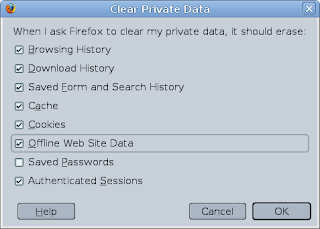
One of the best things I like about Firefox is the password manager and the way cleaning privacy history and cookies is handled. For example, you can set the password manager to remember all the passwords and usernames you enter in forms, and set the privacy manager to only clean up cookies, browsing history, cache, authenticated sessions etc, without deleting the passwords. This way, even though you cleaned up all the cache and cookies, Firefox will still remember usernames and passwords.
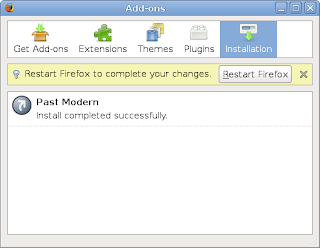
After installing a new theme, the add-ons manager will automatically select it and offer a Restart Firefox button so you can start using it. You have the option to let Firefox remember the last used tabs so it can load them again after the restart.
After the successful launch of Firefox 3, which benefited of around 8.4 million downloads, several news websites reported that a critical security issue was found in the 3.0 version, allowing code to be executed with user permissions on the host computer.
The official website offers several pages showing the new features in Firefox 3.0, like this one. Well, the password manager is not a new feature, I know this one from way back in Firefox 1.x. As Mozilla provides, other new features would be smart location bar, full zoom - by using CTRL++ and CTRL+-, you can zoom in and out of a web page, a very nice feature if you really need it - one use I can think of is the case in which the fonts are too small and you haven't set yet a minimum font size. It probably helps websites not so well designed which offer horizontal scroll too (you know, those annoying websites which make you scroll horizontally in order to read the whole line to the end). You can zoom out on those and read them all at once.
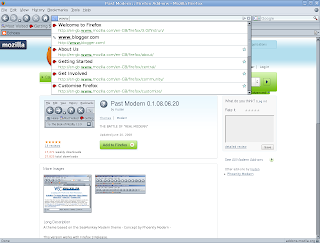
Regarding the speed, Firefox looks to load faster (or is just a false impression?), but the interface reaction is as slow as it was in previous versions. Mozilla says the Gecko layout engine (used to render web pages and the Firefox interface) was improved and it is now faster.
As for documentation, Firefox 3.0 currently offers help online, on the official website, contrary to Firefox 2.x, which also offered a comprehensive and easy to understand offline help.
Overall, Firefox is what it already gained throughout the years: the most popular browser on Linux. I couldn't even think that 3.0 will be anything but a good release, even though with one great accomplishment (the big number of downloads), also came a security vulnerability.
Updated: Jun 22, 2008 (Created: Jun 22, 2008)
The interface itself didn't change much, except for a small change here and there, like the address bar or the way the add-on manager handles newly installed themes. The add-on manager will show recommended add-ons, allowing you to select first from a bunch of add-ons you probable didn't even know they exist.
Firefox, using default theme and running in GNOME 2.22

One of the best things I like about Firefox is the password manager and the way cleaning privacy history and cookies is handled. For example, you can set the password manager to remember all the passwords and usernames you enter in forms, and set the privacy manager to only clean up cookies, browsing history, cache, authenticated sessions etc, without deleting the passwords. This way, even though you cleaned up all the cache and cookies, Firefox will still remember usernames and passwords.
Cleaning up private data - you can select what you want to keep

After installing a new theme, the add-ons manager will automatically select it and offer a Restart Firefox button so you can start using it. You have the option to let Firefox remember the last used tabs so it can load them again after the restart.
Firefox add-ons - new theme is used automatically after restart

After the successful launch of Firefox 3, which benefited of around 8.4 million downloads, several news websites reported that a critical security issue was found in the 3.0 version, allowing code to be executed with user permissions on the host computer.
The official website offers several pages showing the new features in Firefox 3.0, like this one. Well, the password manager is not a new feature, I know this one from way back in Firefox 1.x. As Mozilla provides, other new features would be smart location bar, full zoom - by using CTRL++ and CTRL+-, you can zoom in and out of a web page, a very nice feature if you really need it - one use I can think of is the case in which the fonts are too small and you haven't set yet a minimum font size. It probably helps websites not so well designed which offer horizontal scroll too (you know, those annoying websites which make you scroll horizontally in order to read the whole line to the end). You can zoom out on those and read them all at once.
The address bar

Regarding the speed, Firefox looks to load faster (or is just a false impression?), but the interface reaction is as slow as it was in previous versions. Mozilla says the Gecko layout engine (used to render web pages and the Firefox interface) was improved and it is now faster.
Using the Past Modern theme for Firefox 3.x

As for documentation, Firefox 3.0 currently offers help online, on the official website, contrary to Firefox 2.x, which also offered a comprehensive and easy to understand offline help.
Overall, Firefox is what it already gained throughout the years: the most popular browser on Linux. I couldn't even think that 3.0 will be anything but a good release, even though with one great accomplishment (the big number of downloads), also came a security vulnerability.
Updated: Jun 22, 2008 (Created: Jun 22, 2008)
Top 10 Best GTK Applications Not Included in GNOME
1. The GIMP - image editor
GIMP is an acronym for GNU Image Manipulation Program, and is the most complete image editor on Linux. It supports various file formats and it features many effects. I usually read complains about GIMP regarding the fact that it's not as 'good' as Photoshop. Well, I'm not a graphics passionate, and I only use GIMP for basic image manipulation (cut, crop, basic effects, resize etc), but I think it's the best tool out there to use with images. The current stable release is 2.4.6.
Official website

2. XChat - IRC client
In my opinion, this is the best graphical IRC client for Linux. Its strength is in support for scripts in Perl and Python, together with an easy to learn plugin interface (given that you know basic C). It offers event-based scripting too. Most of the configuration options are available via the /SET variables, instead of the Preferences window. The logging system allows filenames which can use date specifiers, so you can store your logs in whatever way you want. The Windows version usually ships earlier than the Linux one, but that's not quite an issue, since the client is already complete for several years now.
Official website

3. Inkscape - vector graphics editor
This is a complete vector graphics editor made in GTK. You can save the projects in many formats, like SVG or PDF.
Official website

4. OpenOffice - office suite
Although some say OpenOffice is too bloated and prefer Abiword in GNOME, this still is by far our most fully-featured office suite. It's true, OpenOffice is very slow and it takes some time to load, especially on older PCs, but it's complete and fully supports the OpenDocument format. Besides, it's the best response to Microsoft's Word. I'm not bashing any application here (I actually use a word processor maybe once a month), but I'm sure that Abiword and not even KOffice can compete with OpenOffice at features chapter. As for the speed, yes, they are both faster and use less resources.
Official website

5. VLC - audio/video player
VLC is the kind of video player that usually does not fail to play something when other players can't manage to do it (given that all the codecs are correctly installed). Very powerful and very configurable.
Official website

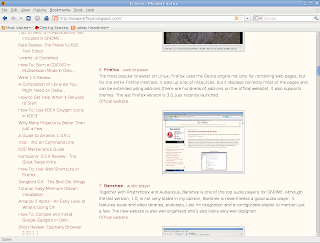
6. Firefox - web browser
The most popular browser on Linux, Firefox uses the Gecko engine not only for rendering web pages, but for the entire Firefox interface. It eats up a lot of resources, but it displays correctly most of the pages and can be extended using add-ons (there are hundreds of add-ons on the official website). It also supports themes. The last Firefox version is 3.0, just recently launched.
Official website

7. Banshee - audio player
Together with Rhythmbox and Audacious, Banshee is one of the top audio players for GNOME. Although the last version, 1.0, is not very stable in my opinion, Banshee is nevertheless a good audio player. It features audio and video libraries, podcasts, Last.fm integration and a configurable playlist to mention just a few. The new website is also well organised and it also looks very well designed.
Official website

8. Deluge - BitTorrent client
Although Linux benefits of many BitTorrent clients, Deluge is one of the best graphical ones, together with Azureus and KTorrent. It features everything a BitTorrent client should have, yet it still has a clean interface.
Official website

9. LinuxDC++ - Direct Connect client
This is the Linux port of the famous DC++ for Windows. It's a bit slow in my opinion, especially when joining very large hubs, but otherwise, it's a complete Direct Connect client.
Official website

10. Geany - text editor and IDE
Not only a text editor, Geany can be also used as a small IDE (Integrated Development Environment), featuring indentation, highlighting for many languages, support for projects, printing to file (PostScript or PDF) and plugins. Those are not all its features though. It's a very good alternative to Gedit.
Official website

Updated: Jun 22, 2008 (Created: Jun 22, 2008)
GIMP is an acronym for GNU Image Manipulation Program, and is the most complete image editor on Linux. It supports various file formats and it features many effects. I usually read complains about GIMP regarding the fact that it's not as 'good' as Photoshop. Well, I'm not a graphics passionate, and I only use GIMP for basic image manipulation (cut, crop, basic effects, resize etc), but I think it's the best tool out there to use with images. The current stable release is 2.4.6.
Official website

2. XChat - IRC client
In my opinion, this is the best graphical IRC client for Linux. Its strength is in support for scripts in Perl and Python, together with an easy to learn plugin interface (given that you know basic C). It offers event-based scripting too. Most of the configuration options are available via the /SET variables, instead of the Preferences window. The logging system allows filenames which can use date specifiers, so you can store your logs in whatever way you want. The Windows version usually ships earlier than the Linux one, but that's not quite an issue, since the client is already complete for several years now.
Official website

3. Inkscape - vector graphics editor
This is a complete vector graphics editor made in GTK. You can save the projects in many formats, like SVG or PDF.
Official website

4. OpenOffice - office suite
Although some say OpenOffice is too bloated and prefer Abiword in GNOME, this still is by far our most fully-featured office suite. It's true, OpenOffice is very slow and it takes some time to load, especially on older PCs, but it's complete and fully supports the OpenDocument format. Besides, it's the best response to Microsoft's Word. I'm not bashing any application here (I actually use a word processor maybe once a month), but I'm sure that Abiword and not even KOffice can compete with OpenOffice at features chapter. As for the speed, yes, they are both faster and use less resources.
Official website

5. VLC - audio/video player
VLC is the kind of video player that usually does not fail to play something when other players can't manage to do it (given that all the codecs are correctly installed). Very powerful and very configurable.
Official website

6. Firefox - web browser
The most popular browser on Linux, Firefox uses the Gecko engine not only for rendering web pages, but for the entire Firefox interface. It eats up a lot of resources, but it displays correctly most of the pages and can be extended using add-ons (there are hundreds of add-ons on the official website). It also supports themes. The last Firefox version is 3.0, just recently launched.
Official website

7. Banshee - audio player
Together with Rhythmbox and Audacious, Banshee is one of the top audio players for GNOME. Although the last version, 1.0, is not very stable in my opinion, Banshee is nevertheless a good audio player. It features audio and video libraries, podcasts, Last.fm integration and a configurable playlist to mention just a few. The new website is also well organised and it also looks very well designed.
Official website

8. Deluge - BitTorrent client
Although Linux benefits of many BitTorrent clients, Deluge is one of the best graphical ones, together with Azureus and KTorrent. It features everything a BitTorrent client should have, yet it still has a clean interface.
Official website

9. LinuxDC++ - Direct Connect client
This is the Linux port of the famous DC++ for Windows. It's a bit slow in my opinion, especially when joining very large hubs, but otherwise, it's a complete Direct Connect client.
Official website

10. Geany - text editor and IDE
Not only a text editor, Geany can be also used as a small IDE (Integrated Development Environment), featuring indentation, highlighting for many languages, support for projects, printing to file (PostScript or PDF) and plugins. Those are not all its features though. It's a very good alternative to Gedit.
Official website

Updated: Jun 22, 2008 (Created: Jun 22, 2008)
June 21, 2008
Kate Review: The Powerful KDE Text Editor
Kate is the KDE Advanced Text Editor, and it does a great job for editing any type of text files, like Bash or Perl scripts, or C/C++ sources.
Kate is really the most complete GUI (Graphical User Interface) text editor I've ever tried. Some of the basic features it has (and practically any good text editor intended for programmers should have) are: good highlighting for various programming languages (it offers default syntax highlighting for an amazing number of source files, like Bash, Perl, C, Lisp, Python, and even Quake scripts are supported), the block selection mode, which allows you to select text based on columns instead of selecting whole lines, indentation which works good enough, export to HTML and even a spell checker.


Kate can be successfully used for both taking notes, editing configuration files, or creating small projects like a C application or a command line tool.

Kate allows you to save sessions and to work with several files at a time. For example, you can split the view vertically or horizontally, work to a file in one view and another one in the second view. Changes will be visible to both files if they are the same. It also provides an embedded terminal, which can use Konsole's default settings. The terminal is very helpful if you work at a source file and then you want to compile without opening another shell application.

It has a very fast load time, very stable and benefits of a complete configuration options via the Settings -> Configure Kate... menu option.


Kate definitely deserves its name, of an advanced text editor. It offers practically anything you can ask from a text editor, and even more.

Updated: April 2, 2009
Kate is really the most complete GUI (Graphical User Interface) text editor I've ever tried. Some of the basic features it has (and practically any good text editor intended for programmers should have) are: good highlighting for various programming languages (it offers default syntax highlighting for an amazing number of source files, like Bash, Perl, C, Lisp, Python, and even Quake scripts are supported), the block selection mode, which allows you to select text based on columns instead of selecting whole lines, indentation which works good enough, export to HTML and even a spell checker.
Usual Kate instance

Exporting as HTML - You can also print the file as PDF if you like

Kate can be successfully used for both taking notes, editing configuration files, or creating small projects like a C application or a command line tool.

Kate allows you to save sessions and to work with several files at a time. For example, you can split the view vertically or horizontally, work to a file in one view and another one in the second view. Changes will be visible to both files if they are the same. It also provides an embedded terminal, which can use Konsole's default settings. The terminal is very helpful if you work at a source file and then you want to compile without opening another shell application.
The right panel allows to select which file you want to edit

It has a very fast load time, very stable and benefits of a complete configuration options via the Settings -> Configure Kate... menu option.
Kate is highly configurable


The Tools menu - Highlighting

Default plugins

Tip of the day

Kate definitely deserves its name, of an advanced text editor. It offers practically anything you can ask from a text editor, and even more.

Updated: April 2, 2009
'uname -a' Explained
uname is a command used to print the system information. uname -a will output all the available information this tool can provide regarding the system. For example, the output of uname -a will look something like:
$ uname -a
Linux debian 2.6.24-1-686 #1 SMP Thu May 8 02:16:39 UTC 2008 i686 GNU/Linux
$
What does is mean?
Linux is the kernel name, in this case, Linux
debian is the machine's hostname (not the distribution name, in this case the hostname just happens to have the same name as the Debian distribution)
2.6.24-1-686 is the kernel version
#1 SMP Thu May 8 02:16:39 UTC 2008 - SMP stands for symmetric multiprocessing, denoting that the CPU (central processing unit) is using two or more CPUs; what follows is the current system date
i686 is the CPU architecture
GNU/Linux is the operating system name
This information can also be retrieved using only certain options, like uname -r which will only return the kernel version, or uname -m for hardware architecture.
$ uname -m
i686
$
uname won't show the distribution version, but this can usually be obtained using other commands, specific for each distribution. For example, on Debian you would use cat /etc/debian_version, which will output something similar to:
$ cat /etc/debian_version
lenny/sid
$
Updated: Jun 21, 2008 (Created: Jun 21, 2008)
$ uname -a
Linux debian 2.6.24-1-686 #1 SMP Thu May 8 02:16:39 UTC 2008 i686 GNU/Linux
$
What does is mean?
Linux is the kernel name, in this case, Linux
debian is the machine's hostname (not the distribution name, in this case the hostname just happens to have the same name as the Debian distribution)
2.6.24-1-686 is the kernel version
#1 SMP Thu May 8 02:16:39 UTC 2008 - SMP stands for symmetric multiprocessing, denoting that the CPU (central processing unit) is using two or more CPUs; what follows is the current system date
i686 is the CPU architecture
GNU/Linux is the operating system name
This information can also be retrieved using only certain options, like uname -r which will only return the kernel version, or uname -m for hardware architecture.
$ uname -m
i686
$
uname won't show the distribution version, but this can usually be obtained using other commands, specific for each distribution. For example, on Debian you would use cat /etc/debian_version, which will output something similar to:
$ cat /etc/debian_version
lenny/sid
$
Updated: Jun 21, 2008 (Created: Jun 21, 2008)
June 20, 2008
How-To: Burn a CD/DVD in Multisession Mode in Debian
Note: This how-to may also work in Ubuntu and other Debian-based distributions.
Here is a short tutorial for beginners, showing how to burn a CD/DVD in multisession mode using K3b, the powerful KDE burning application.
To install K3b, type as root:
apt-get install k3b
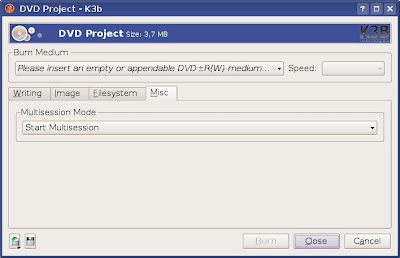
After starting K3b, select the files which you want to burn, then go to Project -> Burn (or press CTRL+B, the default shortcut to start burning in K3b). In the window that appears, go to the Misc tab and under the Multisession Mode drop-down list select Start Multisession.
Updated: Jun 20, 2008 (Created: Jun 20, 2008)
Here is a short tutorial for beginners, showing how to burn a CD/DVD in multisession mode using K3b, the powerful KDE burning application.
To install K3b, type as root:
apt-get install k3b
After starting K3b, select the files which you want to burn, then go to Project -> Burn (or press CTRL+B, the default shortcut to start burning in K3b). In the window that appears, go to the Misc tab and under the Multisession Mode drop-down list select Start Multisession.

Updated: Jun 20, 2008 (Created: Jun 20, 2008)
Wine 1.0 Review
Finally, the so called 'stable' version of Wine, 1.0, has been released on June 17, 2008.
The last Wine review I made was for 1.0RC2 (release candidate 2), in which I already tested World of WarCraft, mIRC and DC++. I had no issues with World of WarCraft (tested using a trial account) which performs very well, without any visible problems, DC++ has minor stability problems and the mIRC scripts editor crashes, but otherwise, mIRC behaves good enough.

A little more about mIRC
As I already said in the previous Wine review, there is no point to use mIRC when there are native powerful IRC clients on Linux like XChat, KVirc or Irssi. But it comes useful when you just made the switch and you have a whole bunch of mIRC scripts you don't want to rewrite immediately.

Well, 1.0 fixes some of the mIRC issues: the script editor doesn't crash the first time you'll start it, but only when selecting the Remote tab. But I did this: I tested an old mIRC trivia bot which I've done a long time ago, when I was using Windows. Instead of loading the files from within the scripts editor, I just copied the scripts and the mirc.ini files into ~/.wine/drive_c/Program\ Files/mIRC. The mirc.ini file also contained several lines specifying what scripts mIRC should load, lines looking like this inside the [rfiles] section:
n11=DSotM\Trivia\admincmds.mrc
n12=DSotM\Trivia\ban.mrc
n13=DSotM\Trivia\commands.mrc
It works flawlessly this way: just don't use the scripts editor. The latest mIRC version I tested was 6.32.

I'm curious about how that Valve code porting to Linux will turn out, but until then, I can tell that both Half-Life 2 and Counter-Strike 1.6 work very well using Wine 1.0. Half-Life 2 is just a little slower than on Windows, while Counter-Strike 1.6 offers less FPS (frames per second). But if you used to play at 70 FPS on Windows with a, say GeForce FX5900, you'll easily reach around 60 FPS on Linux with the same video card.
I also tested Championship Manager 01-02 and Championship Manager 02-03 (aka CM4). They work flawlessly using Wine. And it's better to have it that way, since the only decent football simulator on Linux that I know is Bygfoot, which is very poor in features compared to these two commercial ones. I didn't test any later versions of the above mentioned games, but I'll give it a try as soon as I'll get one.

As a conclusion: for those who really need Windows applications, Wine is a very good solution. The official website includes an applications database, with testing results for each of them and how well they perform.
Updated: Jun 20, 2008 (Created: Jun 20, 2008)
The last Wine review I made was for 1.0RC2 (release candidate 2), in which I already tested World of WarCraft, mIRC and DC++. I had no issues with World of WarCraft (tested using a trial account) which performs very well, without any visible problems, DC++ has minor stability problems and the mIRC scripts editor crashes, but otherwise, mIRC behaves good enough.
World of WarCraft - probably the most popular MMORPG out there

A little more about mIRC
As I already said in the previous Wine review, there is no point to use mIRC when there are native powerful IRC clients on Linux like XChat, KVirc or Irssi. But it comes useful when you just made the switch and you have a whole bunch of mIRC scripts you don't want to rewrite immediately.
mIRC 6.32 performs quite well, except for the scripts editor which crashes

Well, 1.0 fixes some of the mIRC issues: the script editor doesn't crash the first time you'll start it, but only when selecting the Remote tab. But I did this: I tested an old mIRC trivia bot which I've done a long time ago, when I was using Windows. Instead of loading the files from within the scripts editor, I just copied the scripts and the mirc.ini files into ~/.wine/drive_c/Program\ Files/mIRC. The mirc.ini file also contained several lines specifying what scripts mIRC should load, lines looking like this inside the [rfiles] section:
n11=DSotM\Trivia\admincmds.mrc
n12=DSotM\Trivia\ban.mrc
n13=DSotM\Trivia\commands.mrc
It works flawlessly this way: just don't use the scripts editor. The latest mIRC version I tested was 6.32.
Wine installing the Gecko engine

I'm curious about how that Valve code porting to Linux will turn out, but until then, I can tell that both Half-Life 2 and Counter-Strike 1.6 work very well using Wine 1.0. Half-Life 2 is just a little slower than on Windows, while Counter-Strike 1.6 offers less FPS (frames per second). But if you used to play at 70 FPS on Windows with a, say GeForce FX5900, you'll easily reach around 60 FPS on Linux with the same video card.
I also tested Championship Manager 01-02 and Championship Manager 02-03 (aka CM4). They work flawlessly using Wine. And it's better to have it that way, since the only decent football simulator on Linux that I know is Bygfoot, which is very poor in features compared to these two commercial ones. I didn't test any later versions of the above mentioned games, but I'll give it a try as soon as I'll get one.
Wine 1.0 in its splendour

As a conclusion: for those who really need Windows applications, Wine is a very good solution. The official website includes an applications database, with testing results for each of them and how well they perform.
Updated: Jun 20, 2008 (Created: Jun 20, 2008)
Subscribe to:
Posts (Atom)