This post lists the necessary libraries needed to either compile or run several applications on Debian Lenny. For the applications already included in the repositories (like Amarok, Wine, Banshee and so on) use this guide. Make sure to always try apt-get build-dep application_name first, then see if you really need some other dependencies. This is not a general-purpose guide, it's mostly KDE oriented and lists dependencies for programs I need and use, yours might or might not be in this list.
build-essential - GNU Compiler Collection and several other utilities needed for compiling software (this is essential if you plan to compile from source)
kdebase-dev - headers and development libraries needed to compile most KDE applications
lsb-cxx - required by the QtCurve KDE3 style
libxpm-dev - required by KDocker
libstdc++5 - required by many programs, UT2004 among them
libqt0-ruby1.8 - required by Wiki-Lyrics Amarok script
python-qt3 - required by ConTEXT Amarok script
libboost-dev - required by Wesnoth
pyste - required by Wesnoth
konq-plugins - required by Ark for Konqueror integration
ident2 - ident daemon, required by Konversation (not essential)
ntpdate - keeps your date synchronised with an Internet server
libglib1.2-dev - required to compile XMMS
libgtk1.2-dev - required to compile XMMS
Just use apt-get install library_name as root in order to install any of the above.
Updated: Jun 19, 2008 (Created: Jun 19, 2008)


June 19, 2008
How to Get Help When X Refuses to Start
I'm sure many of us had this problem, and not only once: for some reason or another, the X Window System refuses to start and you get stuck in console. I remember an event also referred to as the 'Black Ubuntu Day', when an update crashed X. As far as I remember, I had no problem since I didn't restart my X server after the upgrade and a fix was available after a few hours, but thousands (or maybe more, can't tell the number exactly) of other users couldn't log into GUI any more.
Usually it's just a wrongly configured mouse or driver selected in the /etc/X11/xorg.conf file, but in other cases the problem seems harder to get solved at first sight.
Well, don't despair at this point: I can't tell you what exactly is the problem, but I can recommend two of the most useful applications in such a situation: a CLI (command line interface) client for IRC (internet relay chat) and a CLI web browser. There are many IRC clients out there for use in a console, like BitchX (I'm not sure if it's still maintained), Irssi or Epic4. The same goes for web browsers: some of the popular ones are w3m, lynx, elinks or links. All you need is a working internet connection. You can then install these applications using the package manager of your distribution, for example in Ubuntu this is done using sudo apt-get install lynx irssi.
All of these applications work in command line, and with an IRC connection and a web browser, your solution will be close. Well, the web browser is slower to use and can't display images, but at least you can browse for help instead of staring at the shell.
So, the two applications I recommend to always have installed are Irssi and lynx. I always have those installed even though I only use Irssi, just in case. You will also need a text editor, and nano or vim come installed by default on all the distributions I tried.
IRC is a text chat protocol used for almost 20 years. Despite its age it still remains one of the most used protocols for chatting and support out there. Every decent distribution has a channel on Freenode (or OFTC in Debian's case), with hundreds of users at any given time.
To get on IRC, just start irssi and type /connect irc.freenode.org. Next, join the channel for your distribution. For example, if you use Ubuntu, type /join #ubuntu. And start saying what your problem is, soon enough somebody will notice you and eventually offer the needed help. To quit Irssi, just type /quit. There are unwritten rules for using IRC, also known as the 'netiquette'. Usually, don't ask to ask in support channels, don't send private messages unless you first ask the person on the channel if that's OK with him, don't start flame wars, and you'll be just fine. You'd be surprised to know that most of the persons who use to read and spend a good amount of time on forums, are amazed by the fact that they learn on IRC more in 20 minutes than they learn an entire day on a forum.
As for lynx, I recommend starting it using the command lynx www.google.com. Navigate using the arrows until the search bar is focused, then try searching for terms related to your problem.
Updated: Sep 13, 2008 (Created: Jun 19, 2008)
Usually it's just a wrongly configured mouse or driver selected in the /etc/X11/xorg.conf file, but in other cases the problem seems harder to get solved at first sight.
Well, don't despair at this point: I can't tell you what exactly is the problem, but I can recommend two of the most useful applications in such a situation: a CLI (command line interface) client for IRC (internet relay chat) and a CLI web browser. There are many IRC clients out there for use in a console, like BitchX (I'm not sure if it's still maintained), Irssi or Epic4. The same goes for web browsers: some of the popular ones are w3m, lynx, elinks or links. All you need is a working internet connection. You can then install these applications using the package manager of your distribution, for example in Ubuntu this is done using sudo apt-get install lynx irssi.
All of these applications work in command line, and with an IRC connection and a web browser, your solution will be close. Well, the web browser is slower to use and can't display images, but at least you can browse for help instead of staring at the shell.
So, the two applications I recommend to always have installed are Irssi and lynx. I always have those installed even though I only use Irssi, just in case. You will also need a text editor, and nano or vim come installed by default on all the distributions I tried.
IRC is a text chat protocol used for almost 20 years. Despite its age it still remains one of the most used protocols for chatting and support out there. Every decent distribution has a channel on Freenode (or OFTC in Debian's case), with hundreds of users at any given time.
To get on IRC, just start irssi and type /connect irc.freenode.org. Next, join the channel for your distribution. For example, if you use Ubuntu, type /join #ubuntu. And start saying what your problem is, soon enough somebody will notice you and eventually offer the needed help. To quit Irssi, just type /quit. There are unwritten rules for using IRC, also known as the 'netiquette'. Usually, don't ask to ask in support channels, don't send private messages unless you first ask the person on the channel if that's OK with him, don't start flame wars, and you'll be just fine. You'd be surprised to know that most of the persons who use to read and spend a good amount of time on forums, are amazed by the fact that they learn on IRC more in 20 minutes than they learn an entire day on a forum.
As for lynx, I recommend starting it using the command lynx www.google.com. Navigate using the arrows until the search bar is focused, then try searching for terms related to your problem.
Updated: Sep 13, 2008 (Created: Jun 19, 2008)
How-To: Use KDE4 Oxygen Icons in KDE3
Oxygen is the default KDE4 icon theme. As far as I know, the project was especially created for the new KDE 4.0 release.
In order to use the icon theme in KDE3, you will only have to follow several easy steps.
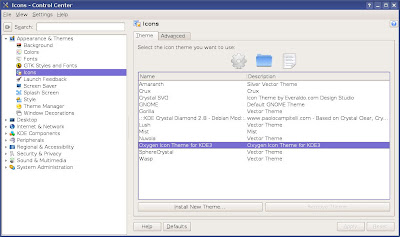
First, get the theme from the kde-look.org page. After it finishes downloading, open KControl (press ALT+F2 and type kcontrol in the run dialogue that appears) and go to Appearance & Themes -> Icons, then click on the Install New Theme... button and select the theme you've just downloaded.
Some icons don't change immediately (some running applications change all of them, others don't) so log out and log back in to complete the installation.
Updated: Jun 19, 2008 (Created: Jun 19, 2008)
In order to use the icon theme in KDE3, you will only have to follow several easy steps.
First, get the theme from the kde-look.org page. After it finishes downloading, open KControl (press ALT+F2 and type kcontrol in the run dialogue that appears) and go to Appearance & Themes -> Icons, then click on the Install New Theme... button and select the theme you've just downloaded.
KControl

Some icons don't change immediately (some running applications change all of them, others don't) so log out and log back in to complete the installation.
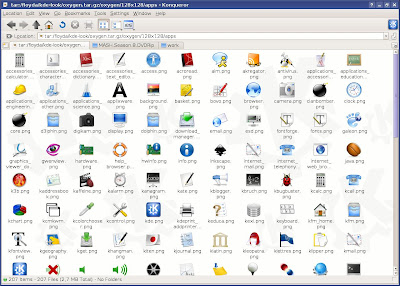
Preview of several icons included in Oxygen for KDE3

Updated: Jun 19, 2008 (Created: Jun 19, 2008)
June 18, 2008
Why Many Projects Is Better Than Just a Few
I kept reading opinions regarding the big number of Linux distributions out there, most of them saying that we have a huge number of distros, each one with its own package management system, keeping Linux divided. Most of them suggest only a few such projects, and that all developers should unite in order to produce a 'universal' solution to this. A comparison with MS Windows is always brought in as an argument. Of course, every person with its own opinion, but why do I think a big number of projects is the way to go?
Well, in the first place, I think a 'universal' distribution is not quite possible. There will always be persons who will want to have their own project and eventually start it from scratch instead of contributing to an already solid one. Not to mention that Linux itself was born from such a project, and examples of projects which started the same way as the Linux kernel are countless.
Since free-software as promoted by the FSF is all about freedom and free choice, the developers are free to choose their own way of programming and building projects. If someone wants to start a new audio player instead of contributing to Amarok or Audacious, for example, then good for him. This way, we'll have one more audio player available out there, one more to choose from. Most of the big, established projects already have enough developers and contributors. They usually need only feedback from users and bug reports.
Now, regarding the way of installing things. It's true, we have big distributions like Debian (with its popular derivative, Ubuntu), Fedora or Gentoo, each of them with their own package management. So you are tempted to say that we have too many systems of installing software instead of a single one. Well, in the first place, learning to use a new package installing system can only take a few hours (if you really need to switch from a distribution to another). Most of the software one needs is available in the repositories and can be fetched easily using either command line or a GUI interface. Decent applications like Skype or Opera offer their software packaged for each distribution out there, so there will be no problems installing it on any system. Not to mention the graphical tools available. For example: a Fedora user who somehow will need to fix a Debian box (or install some software on it) won't need to know how to use APT, he will only need Synaptic or KPackage to do the job. And I'm sure over 90% of the Linux users get familiar with a new graphical tool in less than 30 minutes or one hour. It's true, if problems like a sources.list file edited the wrong way arrive, he will only need to follow an online guide which will get him out of trouble.
Again, ten projects for one thing is better than a single project. It happened to me to see people who were not satisfied with a very popular application for some reason, even though the majority liked it. So they had the choice to try another one, which probably suited their taste better. What if they didn't have that choice? They would have been forced to use something which they don't like. The same goes with distributions: a single 'universal' solution might be OK for most of the people, but there will always be a number of people who will want an alternative, something which works the other way around. And to have this alternative is imperative. Just think of a Linux world where there would only be Ubuntu, or only SuSE, or only Slackware.
I already said this, a single project for a specific task is not even possible. There is no such thing as 'let's all unite our forces and only do this thing'. 'Every KDE developer, forget KDE and let's develop GNOME, or vice-versa. Every passionate, either professional or amateur programmer, forget your little projects you love and join the big ones'. This won't happen. And it's better not to happen: free choice is all what Linux is about.
Updated: Jun 18, 2008 (Created: Jun 18, 2008)
Well, in the first place, I think a 'universal' distribution is not quite possible. There will always be persons who will want to have their own project and eventually start it from scratch instead of contributing to an already solid one. Not to mention that Linux itself was born from such a project, and examples of projects which started the same way as the Linux kernel are countless.
Since free-software as promoted by the FSF is all about freedom and free choice, the developers are free to choose their own way of programming and building projects. If someone wants to start a new audio player instead of contributing to Amarok or Audacious, for example, then good for him. This way, we'll have one more audio player available out there, one more to choose from. Most of the big, established projects already have enough developers and contributors. They usually need only feedback from users and bug reports.
Now, regarding the way of installing things. It's true, we have big distributions like Debian (with its popular derivative, Ubuntu), Fedora or Gentoo, each of them with their own package management. So you are tempted to say that we have too many systems of installing software instead of a single one. Well, in the first place, learning to use a new package installing system can only take a few hours (if you really need to switch from a distribution to another). Most of the software one needs is available in the repositories and can be fetched easily using either command line or a GUI interface. Decent applications like Skype or Opera offer their software packaged for each distribution out there, so there will be no problems installing it on any system. Not to mention the graphical tools available. For example: a Fedora user who somehow will need to fix a Debian box (or install some software on it) won't need to know how to use APT, he will only need Synaptic or KPackage to do the job. And I'm sure over 90% of the Linux users get familiar with a new graphical tool in less than 30 minutes or one hour. It's true, if problems like a sources.list file edited the wrong way arrive, he will only need to follow an online guide which will get him out of trouble.
Again, ten projects for one thing is better than a single project. It happened to me to see people who were not satisfied with a very popular application for some reason, even though the majority liked it. So they had the choice to try another one, which probably suited their taste better. What if they didn't have that choice? They would have been forced to use something which they don't like. The same goes with distributions: a single 'universal' solution might be OK for most of the people, but there will always be a number of people who will want an alternative, something which works the other way around. And to have this alternative is imperative. Just think of a Linux world where there would only be Ubuntu, or only SuSE, or only Slackware.
I already said this, a single project for a specific task is not even possible. There is no such thing as 'let's all unite our forces and only do this thing'. 'Every KDE developer, forget KDE and let's develop GNOME, or vice-versa. Every passionate, either professional or amateur programmer, forget your little projects you love and join the big ones'. This won't happen. And it's better not to happen: free choice is all what Linux is about.
Updated: Jun 18, 2008 (Created: Jun 18, 2008)
A Guide to Amarok 1.4.9.1
Amarok gained its huge popularity due to a vast number of features and very good functionality, like a complex collection management, support for iPod and several other MP3/Ogg players, integration with Wikipedia, lyrics fetching, support for scripts, cover manager, dynamic playlists, podcasts. And these are to only list a few. The latest Amarok version, 1.4.9.1, is the most stable release in the 1.4.x series, and also the most fully-featured Amarok up to date.
Edit: Amarok 1.4.10 is out for a while now and it includes a bug fix over 1.4.9.1.
First start
When it first starts, Amarok will show a wizard to configure the music collection location and the database to use.
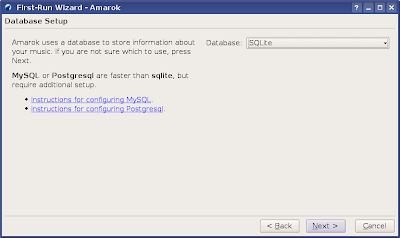
Amarok allows you to select from three database types, and the default is SQLite, which requires no further configuration, but is slower than the other two available: MySQL and PostgreSQL. You will have to set up the database first in order to use either of those two. I recommend to stick with the default for now.
After you click Finish, Amarok will start scanning your music files and building up the collection. The duration of the scan varies from one PC to another. It took 2 minutes and a half to scan my collection consisting of around 3800 Ogg Vorbis files, on my Core 2 Duo 1.8 GHz. It's not a record, but it's neither slow, considering some other audio players take even 5-7 minutes for the same operation while not providing the same amount of collection features.
The playlist
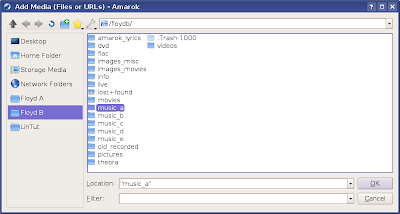
Next, populate your playlist by going to Playlist -> Add Media and select the directories in which your music is located.
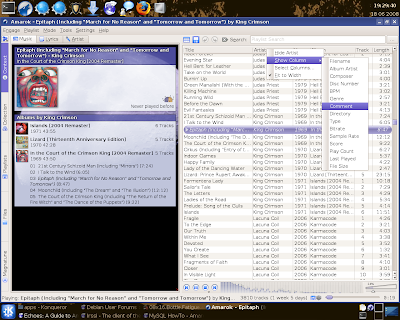
The playlist offers plenty sort options: you can sort by album, title, even bitrate. Basically any information that can be offered about a song at a given time. I always prefer to sort them by path (the Directory column). You can even change the order the columns are shown, or hide the ones which you don't want to be shown.
Changing default theme and appearance
You can change Amarok's default theme with one which suits your taste better, like the Moon theme which I like the most. Go to Settings -> Configure Amarok -> Appearance and either install a new theme from a .tar.gz compressed file or download a new one. You can also configure font sizes and colours from the same tab.
Use scripts to expand functionality
One of the great features Amarok comes with is the ability to expand it using various scripts. Two which I strongly recommend are the ConTEXT script (which will search for text or HTML files in the directory where the currently playing song is located and display the information found in the context browser) and the WikiLyrics (which uses many lyrics search sites in order to display the currently playing song's lyrics in the Lyrics tab). To download those scripts, go to Tools -> Script Manager and click on the Get More Scripts button.
You can also install scripts located on your local hard drive, given that their name ends up in .amarokscript.tar.gz or .amarokscript.tar.bz2.
If you want to use MySQL instead of the default SQLite, you can use the official guide here. Given that you do everything correctly, it shouldn't take longer than 10 minutes to set it up.
Another good feature Amarok has is an integrated file browser, which allows you to easily drag and drop files and folder directly into the playlist. It's very useful, especially that it also offers Konqueror's Properties when you right click on any file or folder.
Integrated music shop - Magnatune
Magnatune is a service which allows artists to sell and promote music licensed under a Creative Commons license. Amarok integrated this service in a separate tab, which will be displayed in the place of the context browser when selected.
Powerful tag editor
Amarok's tag editor allows you to edit tags for many songs at once. You can select for example all the songs belonging to an album, right click on any of them, go to Edit Information for N Tracks... and fill in data like album, artist, genre and year. After you save it, all the songs will have their tags completed, so you'll only need to fill in data like song title individually for each file.

Updated: Sep 15, 2008
Edit: Amarok 1.4.10 is out for a while now and it includes a bug fix over 1.4.9.1.
First start
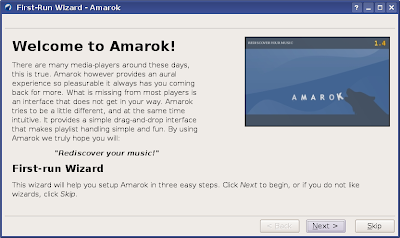
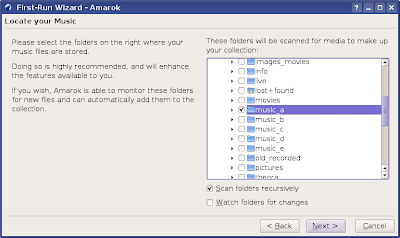
When it first starts, Amarok will show a wizard to configure the music collection location and the database to use.
Amarok wizard

Select the location of your audio collection

Choose database type - SQLite is the default

Amarok allows you to select from three database types, and the default is SQLite, which requires no further configuration, but is slower than the other two available: MySQL and PostgreSQL. You will have to set up the database first in order to use either of those two. I recommend to stick with the default for now.
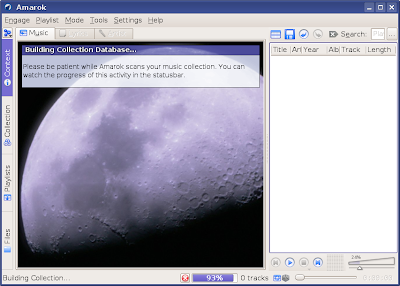
After you click Finish, Amarok will start scanning your music files and building up the collection. The duration of the scan varies from one PC to another. It took 2 minutes and a half to scan my collection consisting of around 3800 Ogg Vorbis files, on my Core 2 Duo 1.8 GHz. It's not a record, but it's neither slow, considering some other audio players take even 5-7 minutes for the same operation while not providing the same amount of collection features.
The playlist
Next, populate your playlist by going to Playlist -> Add Media and select the directories in which your music is located.
Populating the playlist

The playlist offers plenty sort options: you can sort by album, title, even bitrate. Basically any information that can be offered about a song at a given time. I always prefer to sort them by path (the Directory column). You can even change the order the columns are shown, or hide the ones which you don't want to be shown.
The playlist and all the sorting options available

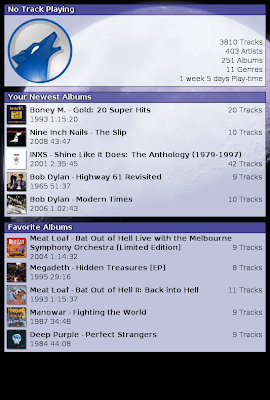
The context browser

Changing default theme and appearance
You can change Amarok's default theme with one which suits your taste better, like the Moon theme which I like the most. Go to Settings -> Configure Amarok -> Appearance and either install a new theme from a .tar.gz compressed file or download a new one. You can also configure font sizes and colours from the same tab.
Use scripts to expand functionality
One of the great features Amarok comes with is the ability to expand it using various scripts. Two which I strongly recommend are the ConTEXT script (which will search for text or HTML files in the directory where the currently playing song is located and display the information found in the context browser) and the WikiLyrics (which uses many lyrics search sites in order to display the currently playing song's lyrics in the Lyrics tab). To download those scripts, go to Tools -> Script Manager and click on the Get More Scripts button.
You can also install scripts located on your local hard drive, given that their name ends up in .amarokscript.tar.gz or .amarokscript.tar.bz2.
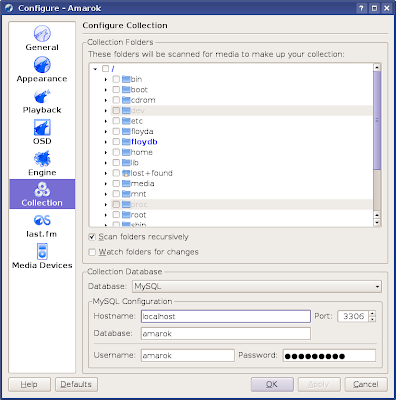
If you want to use MySQL instead of the default SQLite, you can use the official guide here. Given that you do everything correctly, it shouldn't take longer than 10 minutes to set it up.
Configuring MySQL with username and password - you will also need to configure first the MySQL database from command line

Scanning music collection using the MySQL database

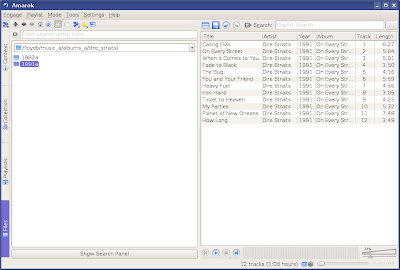
Another good feature Amarok has is an integrated file browser, which allows you to easily drag and drop files and folder directly into the playlist. It's very useful, especially that it also offers Konqueror's Properties when you right click on any file or folder.
Drag and drop files directly into the playlist

Integrated music shop - Magnatune
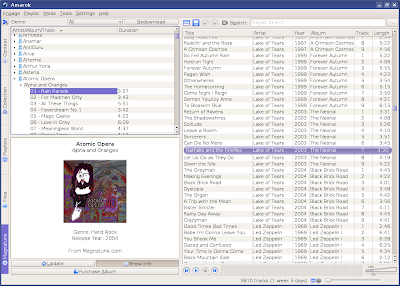
Magnatune is a service which allows artists to sell and promote music licensed under a Creative Commons license. Amarok integrated this service in a separate tab, which will be displayed in the place of the context browser when selected.
Magnatune music shop

Powerful tag editor
Amarok's tag editor allows you to edit tags for many songs at once. You can select for example all the songs belonging to an album, right click on any of them, go to Edit Information for N Tracks... and fill in data like album, artist, genre and year. After you save it, all the songs will have their tags completed, so you'll only need to fill in data like song title individually for each file.
Editing tags - Amarok allows to edit tags for several songs at once

Updated: Sep 15, 2008
Irssi - IRC on Command Line
Irssi is a powerful IRC client which runs in console, offering a lot of options and a Perl scripting interface, making it very useful for those who like to spend a lot of time on IRC troubleshooting problems, helping others or just chatting.
You can configure anything in Irssi using variables. For example, you can change the shortcuts to make Irssi behave differently when you use the Emacs-like shortcuts, you can add servers and channels which you want to auto-connect when Irssi starts, you can make Irssi log your conversations using date specifiers and any path for the logs, and it also supports themes.

The Perl scripting support is one of the strong features Irssi provides: you can basically do anything, like now playing scripts, system info or weather scripts, IRC robots (though I recommend a standalone C bot for trivia games or other helping bots).
The official website is very abundant in documentation, providing help for anything related to Irssi. It's true, if you come from a GUI client like XChat or Konversation, Irssi will be a little tough to learn when you'll start using it, but once you get to know the basics, it will perform very well.
Updated: Jun 18, 2008 (Created: Jun 18, 2008)
You can configure anything in Irssi using variables. For example, you can change the shortcuts to make Irssi behave differently when you use the Emacs-like shortcuts, you can add servers and channels which you want to auto-connect when Irssi starts, you can make Irssi log your conversations using date specifiers and any path for the logs, and it also supports themes.
Typical Irssi running inside Konsole

The Perl scripting support is one of the strong features Irssi provides: you can basically do anything, like now playing scripts, system info or weather scripts, IRC robots (though I recommend a standalone C bot for trivia games or other helping bots).
The official website is very abundant in documentation, providing help for anything related to Irssi. It's true, if you come from a GUI client like XChat or Konversation, Irssi will be a little tough to learn when you'll start using it, but once you get to know the basics, it will perform very well.
Updated: Jun 18, 2008 (Created: Jun 18, 2008)
KDE Maintenance Guide
1. Clean up KDE 3.5.9
KControl - General KDE history and unneeded cookies
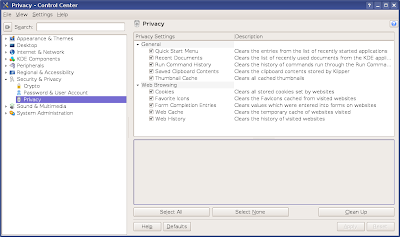
Use KControl in order to clean up Konqueror's web history like cookies or history, or run command history and recent documents. Press ALT+F2, type kcontrol, and in the window appearing go to Security & Privacy -> Privacy. Tick all the options you want to get rid off and click on the Clean Up button.
Amarok's undo history
You can get rid of up to 100 MB of disk space by deleting the Amarok's undo history, located in the ~/.kde/share/apps/amarok/undo/ directory.
Gwenview and Kaffeine cache
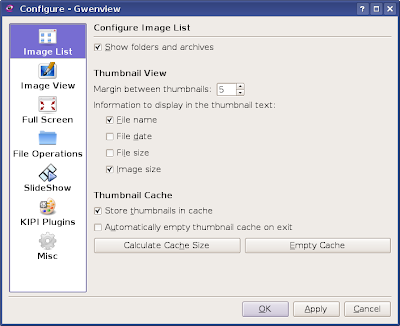
In Gwenview, go to Settings -> Configure Gwenview... and click on the Empty Cache button. This will clean up the thumbnails used to preview images.
In Kaffeine, go to the Misc tab in the configuration window and clear the recent file list.
Get rid of KTorrent search history
To clear the search history of KTorrent delete the file ~/.kde/share/apps/ktorrent/search_history, where ~ is your home directory.
2. Tips for configuring KDE and make it a little faster
Disable the busy cursor
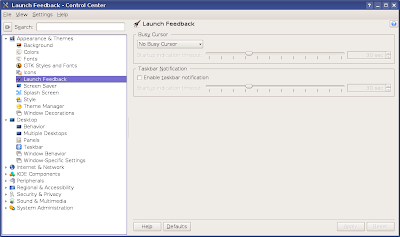
Open KControl (press ALT+F2 and type kcontrol in the run dialogue), then go to Appearance & Themes -> Launch Feedback. In the right section, select No Busy Cursor from the popup list and untick the Enable taskbar notification option.
Use only 2 multiple desktops instead of 4
In KControl, go to Desktop -> Multiple Desktops and select the desired number of desktops (2 might just be enough).
Faster window behaviour
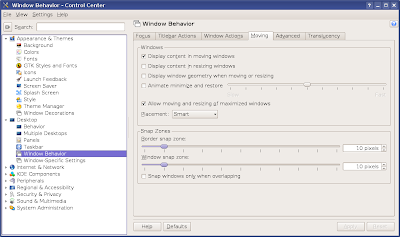
In KControl, go to Desktop -> Window Behavior and select the Moving tab from the right section. Untick the options Display content in resizing windows, Display window geometry when moving and resizing and Animate minimize and restore.
3. Change the way KDE looks
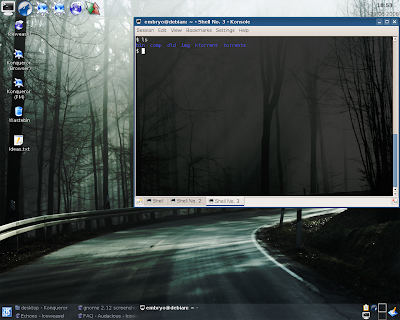
The best website to find icon themes, wallpapers, window decorations, colour schemes, KDE styles and way more is http://www.kde-look.org/. Most of the changes you'll make are done via the KControl -> Appearance & Themes and Desktop tabs. You can change Konsole's background (or use desktop transparency), change fonts, colours, the icon theme, splash screen, use another window decoration, make the panels transparent etc.
Note: Most of the tricks explained here also apply to previous KDE versions, some of them being unchanged even in 3.3.x.
Note: This guide is still WIP (work in progress) and opened for suggestions of any kind.
Updated: Jul 13, 2008 (Created: Jun 18, 2008)
KControl - General KDE history and unneeded cookies
Use KControl in order to clean up Konqueror's web history like cookies or history, or run command history and recent documents. Press ALT+F2, type kcontrol, and in the window appearing go to Security & Privacy -> Privacy. Tick all the options you want to get rid off and click on the Clean Up button.
Clean up general KDE history, cache, Konqueror's cookies

Amarok's undo history
You can get rid of up to 100 MB of disk space by deleting the Amarok's undo history, located in the ~/.kde/share/apps/amarok/undo/ directory.
Gwenview and Kaffeine cache
In Gwenview, go to Settings -> Configure Gwenview... and click on the Empty Cache button. This will clean up the thumbnails used to preview images.
Gwenview thumbnail cache

In Kaffeine, go to the Misc tab in the configuration window and clear the recent file list.
Get rid of KTorrent search history
To clear the search history of KTorrent delete the file ~/.kde/share/apps/ktorrent/search_history, where ~ is your home directory.
2. Tips for configuring KDE and make it a little faster
Disable the busy cursor
Open KControl (press ALT+F2 and type kcontrol in the run dialogue), then go to Appearance & Themes -> Launch Feedback. In the right section, select No Busy Cursor from the popup list and untick the Enable taskbar notification option.
Disable the busy cursor in KControl

Use only 2 multiple desktops instead of 4
In KControl, go to Desktop -> Multiple Desktops and select the desired number of desktops (2 might just be enough).
Faster window behaviour
In KControl, go to Desktop -> Window Behavior and select the Moving tab from the right section. Untick the options Display content in resizing windows, Display window geometry when moving and resizing and Animate minimize and restore.
Window behaviour settings

3. Change the way KDE looks
The best website to find icon themes, wallpapers, window decorations, colour schemes, KDE styles and way more is http://www.kde-look.org/. Most of the changes you'll make are done via the KControl -> Appearance & Themes and Desktop tabs. You can change Konsole's background (or use desktop transparency), change fonts, colours, the icon theme, splash screen, use another window decoration, make the panels transparent etc.

Note: Most of the tricks explained here also apply to previous KDE versions, some of them being unchanged even in 3.3.x.
Note: This guide is still WIP (work in progress) and opened for suggestions of any kind.
Updated: Jul 13, 2008 (Created: Jun 18, 2008)
Subscribe to:
Posts (Atom)